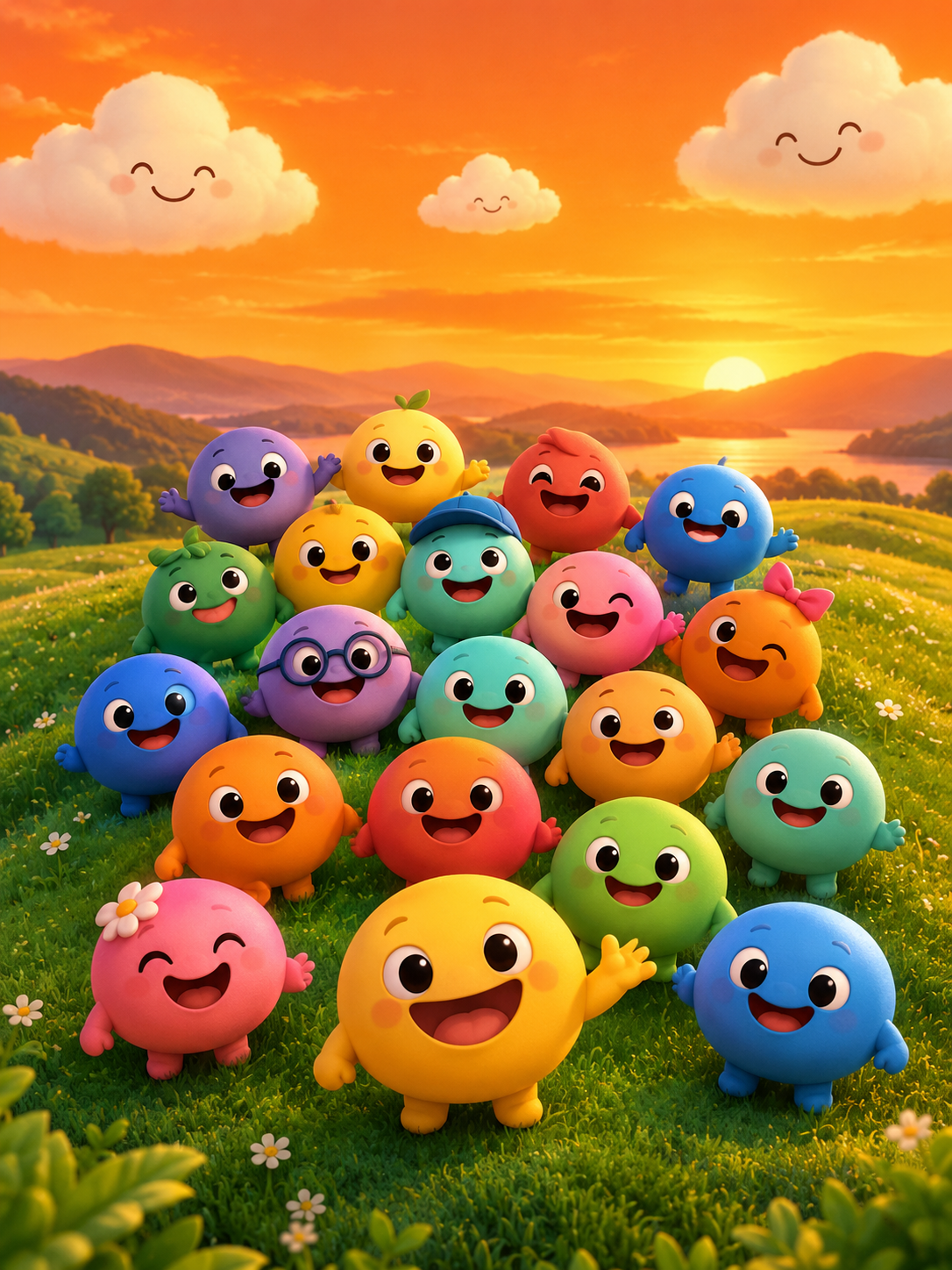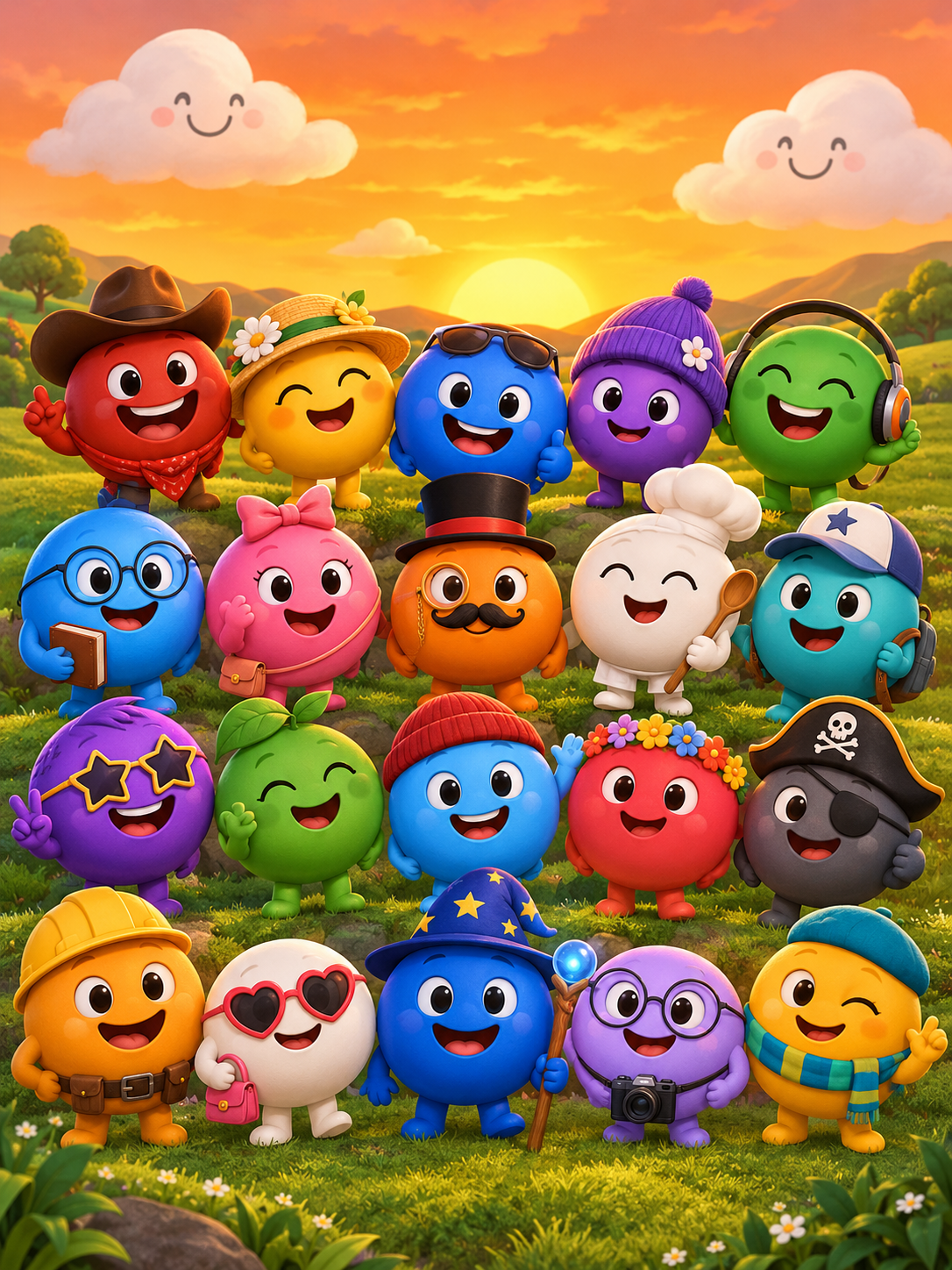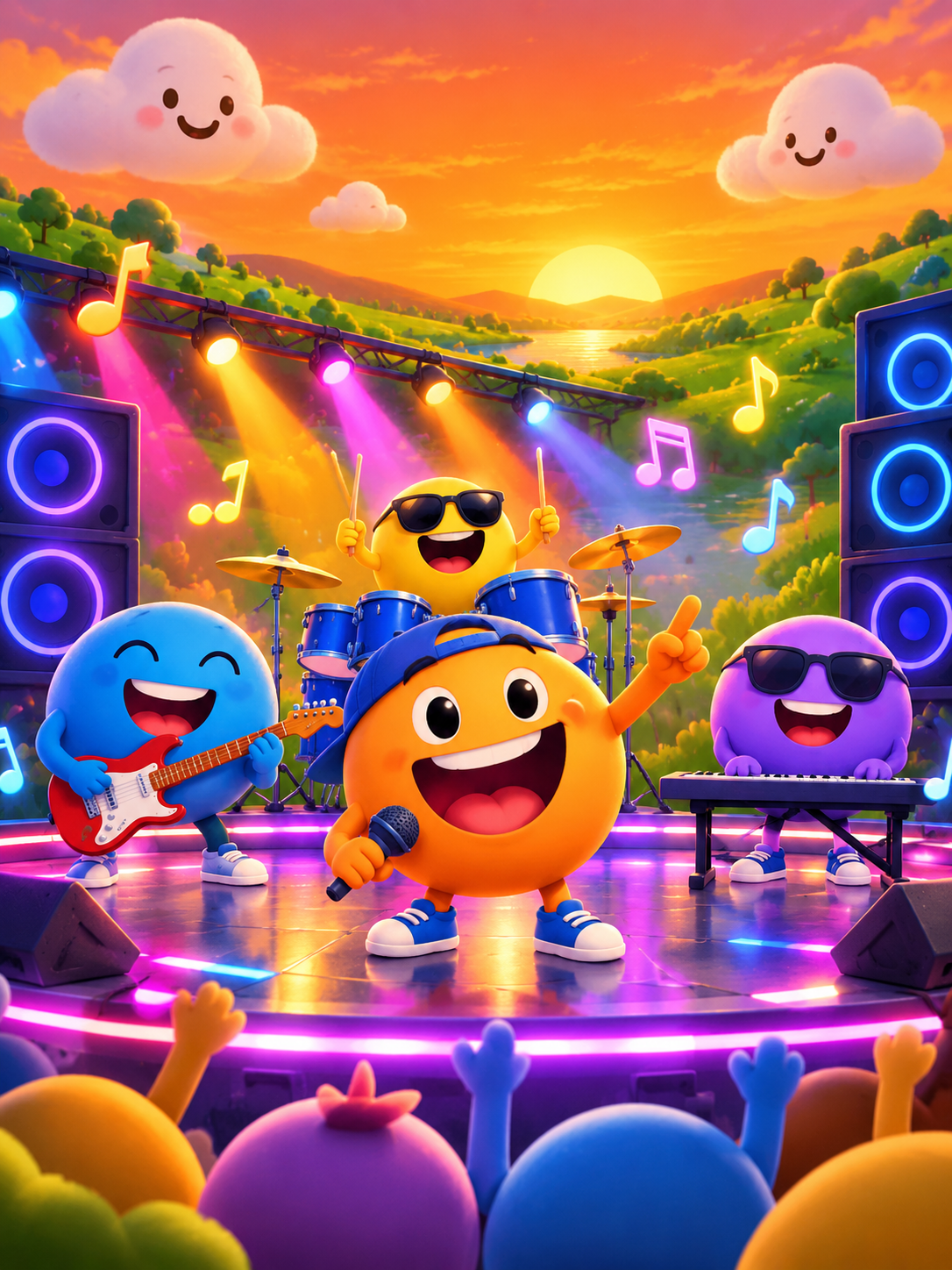
A Sprunkity-style AI video from sprunkity.org is a silent 10-second, 720p, 9:16 MP4 generated with Seedance 2.0 from a written prompt or one character image. You add the music yourself, so plan the clip as a visual layer and pair it with audio you have the rights to use.
The short version
- sprunkity.org is an independent fan-made AI video tool inspired by the Sprunkity scene. It is not the game and is not affiliated with sprunki1000, itch.io, Incredibox or TheGoodSprunkiOwner124.
- Every render costs 30 credits. New accounts start with 0 credits: there is no signup bonus, check-in reward, free preview or watermark trial. Paid renders have no watermark, and failed generations return their credits automatically.
- You can generate from a written prompt or one character image in JPG, PNG or WebP up to 10 MB. Do not expect multiple images, multiple models, custom audio, editing tools or resolutions beyond 720p.
- The MP4 is silent. Add music you have rights to.
- Inputs and outputs are moderated.
- Do not imply that your video is official or endorsed by the game’s creators.
Start with the silence
The first thing to understand about a sprunkity.org render is that there is no audio track. The output is a 10-second, 720p, 9:16 MP4. When you import it into an editor, you will see video but no waveform. That is normal, and it changes how you plan the edit.
Treat the generated clip as a visual layer, not a finished music video. Your editor will hold at least two tracks: the silent clip and the music you have the right to use. Because the tool does not generate custom audio, you cannot ask it to match a specific song, tempo or sound effect. You choose the track separately, then trim the visual to fit the section you want.
This also means the tool is not a one-click publisher. You still need to check the image you uploaded, confirm your rights to the music, add captions and credits, and follow platform disclosure rules. The silent output is not a limitation to work around; it is the handoff point between generation and editing.
Structure a 10-second music video
Ten seconds is short enough that every second needs a job. A useful structure is hook, beat drop and loop point. The exact timing depends on your track, but the principle is the same: give the viewer one clear idea, one strong change and a clean exit.
At 120 BPM, 10 seconds is 20 beats. At 90 BPM, it is 15 beats. Do the math for your chosen excerpt before you write the prompt. That tells you how much room you have for an action, a camera move and a cut. Do not plan a three-part story in a clip that only has time for one gesture.
A practical map looks like this:
- 0–1.5 seconds: hook. Start with the face or character already visible. Avoid a slow fade-in unless the track also has a soft opening.
- 1.5–4 seconds: establish. Show the main action or expression. Keep the framing readable on a phone in 9:16.
- 4–7 seconds: beat drop. Put the biggest visual change here: a cut, a colour shift, a fast push-in or a pose change.
- 7–10 seconds: loop point. End on a frame that can replay or lead into the next post. Do not leave a half-finished gesture.
If your track’s drop lands at 4.2 seconds, trim the clip so the strongest motion arrives at 4.2 seconds. If it lands at 6 seconds, either choose a different excerpt or accept a different structure. The audio is the timeline; the clip is the material you cut to it.
Sync the motion to the beat
Choose one action that lands on the downbeat. A turn, a jump, a camera push, a sudden expression change or a colour flash is easier to sync than complex choreography. In a 10-second clip, one clear action reads better than five small ones.
Trim the clip; do not stretch it. Stretching a 10-second render to 12 or 15 seconds changes the speed and makes the motion feel wrong against the music. If the action lands early, trim the head. If it lands late, trim the tail or choose a later section of the track. Use cuts on beats rather than speed ramps unless you have a specific reason.
It also helps to write the prompt around timing. Instead of asking for a general “music video,” describe one action that can happen near the start or midpoint. You will still align it in the editor, but a clear action gives you a clean frame to cut on. The tool does not promise exact likeness or beat-perfect generation, so leave room for a trim.
Where to find music you can use
There are three reliable paths: platform libraries, licensed stock and original audio. A viral original or the game’s own audio is not automatically safe. Attribution is not a licence, and crediting the creator does not replace permission.
| Music source | Licence | Safe to monetise | Attribution |
|---|---|---|---|
| Platform music library, such as YouTube Audio Library, TikTok Commercial Music Library or Meta Sound Collection | Platform-specific licence; check the track page and current terms | Usually within that platform’s rules if the track is cleared for your use; not automatically elsewhere | Follow the track requirements; some ask for credit |
| Licensed stock subscription, such as Artlist, Epidemic Sound or Musicbed | Subscription licence tied to your account and use case | Yes, if your use matches the licence and the account is active | Follow the licence; some tracks require credit |
| Original audio you record, perform or commission | You own it or hold a written licence | Yes, subject to your agreement and platform rules | Credit collaborators as agreed |
| Original Sprunkity game audio or a viral track | Usually protected; permission is needed | No, unless you have explicit permission | Credit alone does not grant permission |
For fan videos, the safest approach is to use a track you can document. Keep the licence page, receipt or written permission with your project files. If you are using a platform library, check whether the licence covers the platform where you are posting and whether it covers monetised content. Those are separate questions.
Label AI-generated media
TikTok, YouTube and Instagram all have rules about AI-generated media, and the exact labels change. Check the current policy for each platform before you publish. As a practical habit, disclose in the caption and, where the platform preserves it, in the file metadata.
A clear caption is enough for most fan edits: “AI-generated fan video made with sprunkity.org. Not affiliated with the game’s creators.” If the video looks realistic, be more explicit. Do not rely on the platform to detect it for you, and do not remove a platform-applied AI label.
Label the tool as independent. Do not call the video official, do not use creator logos as your own branding, and do not suggest that sprunki1000, itch.io, Incredibox or TheGoodSprunkiOwner124 approved it. Rights in the game, its characters and its art belong to their respective creators.
Publishing checklist
Use this before you upload:
- Confirm you have the rights to the music, including any monetised use.
- Confirm you have the right to use the character image you uploaded.
- Credit the musician, artist or source as required by the licence.
- Add an AI-generated disclosure to the caption and metadata where possible.
- Name sprunkity.org as an independent tool, not the game.
- Check that the thumbnail does not use official art or logos without permission.
- Describe the video accurately; do not claim it is official or endorsed.
- Review the platform’s current AI, music and monetisation rules.
- Keep the licence, permission and project files in case you need to show them later.
FAQ
Q: Does the generated video include music?
A: No. The MP4 is silent. You add music in your editor, and you need rights to that music.
Q: Can I use the original Sprunkity song?
A: Only if you have permission. The game’s audio belongs to its creators, and using it in a fan video does not make it yours.
Q: Can I monetise the result?
A: Follow the model provider’s terms and the platform’s rules. You also need rights to the audio and the uploaded image. Do not impersonate anyone or imply endorsement.
Keep creating
Ready to render a clip? Start at /#create and check the credit packages on pricing. For a smoother workflow, read how to make a Sprunkity video, Sprunkity AI video cost and Sprunkity fan video rules.
Try the tool from this guide
Every render costs 30 credits. Failed generations return credits.
Make your Sprunkity video
Describe a 10-second Sprunkity-style scene. Seedance 2.0 creates it from your words alone.
Only selected results appear in our gallery after review. Your input remains private.
$19.90/ 30 credits
30 credits · 10 secondsEvery render costs 30 credits. One-time packs never expire; monthly credits last for the billing month.
Your videos
Describe a scene or upload a character image, then create your video.
Sprunkity
Sprunkity editorial team · Source and publishing references