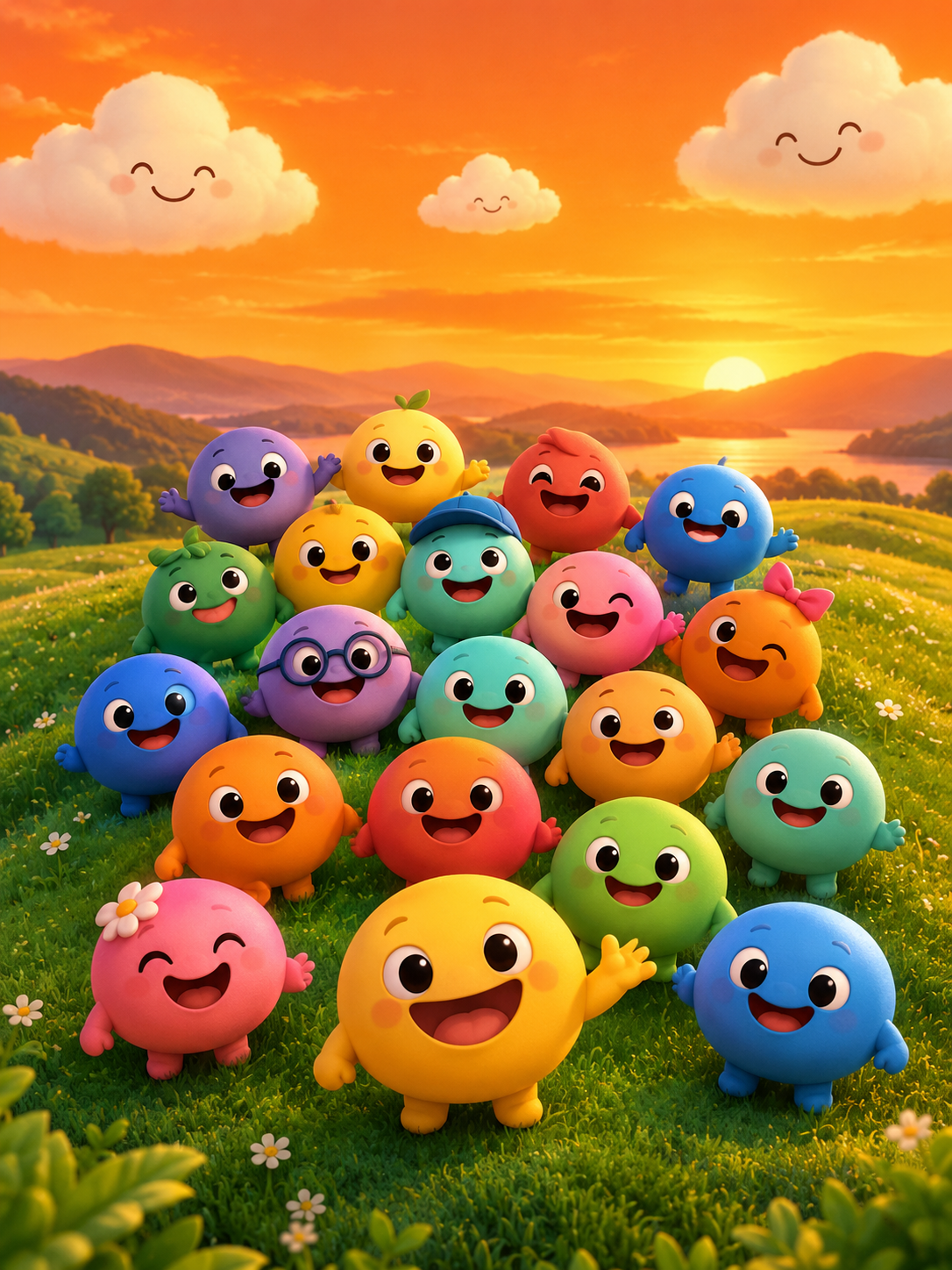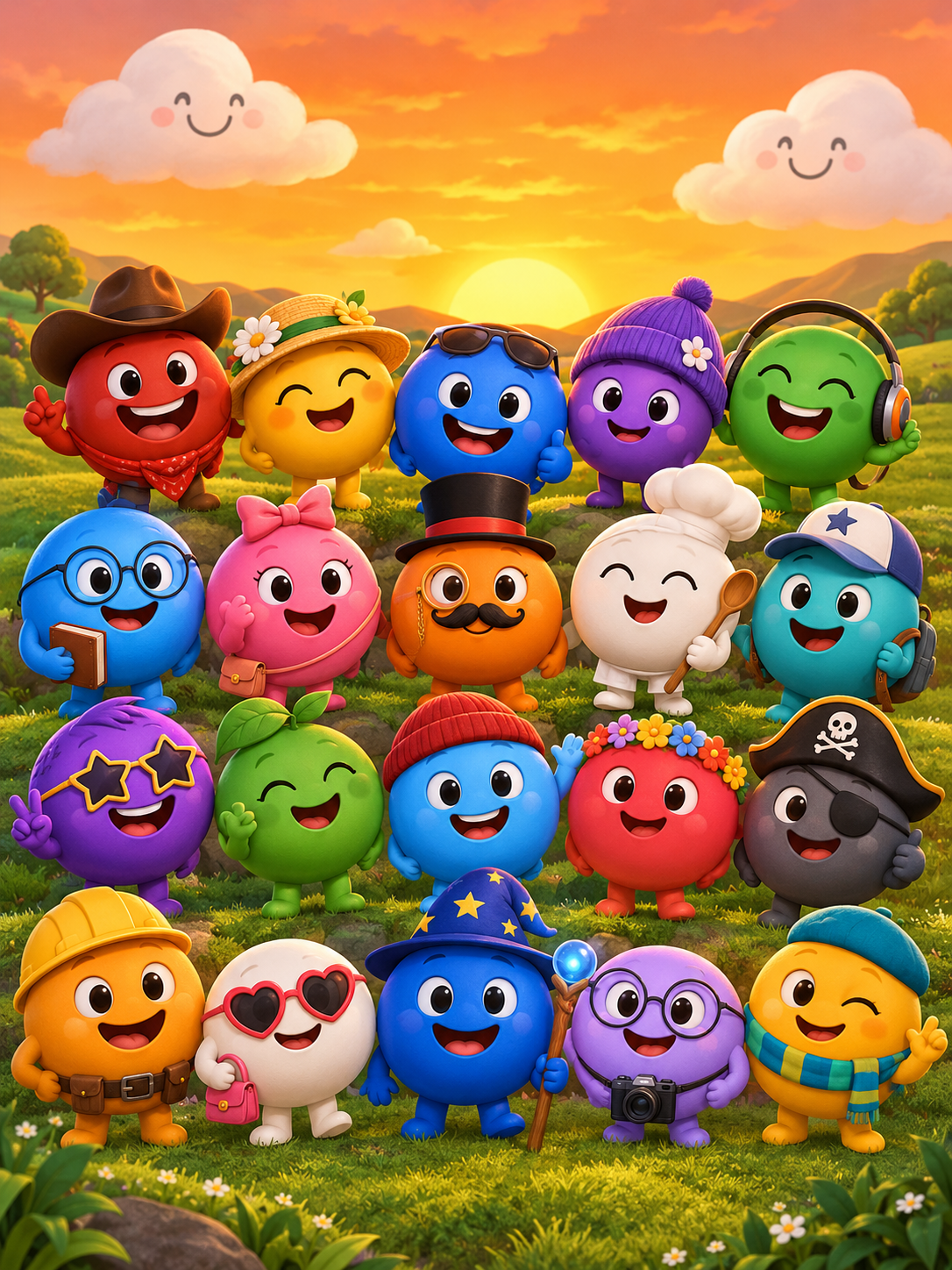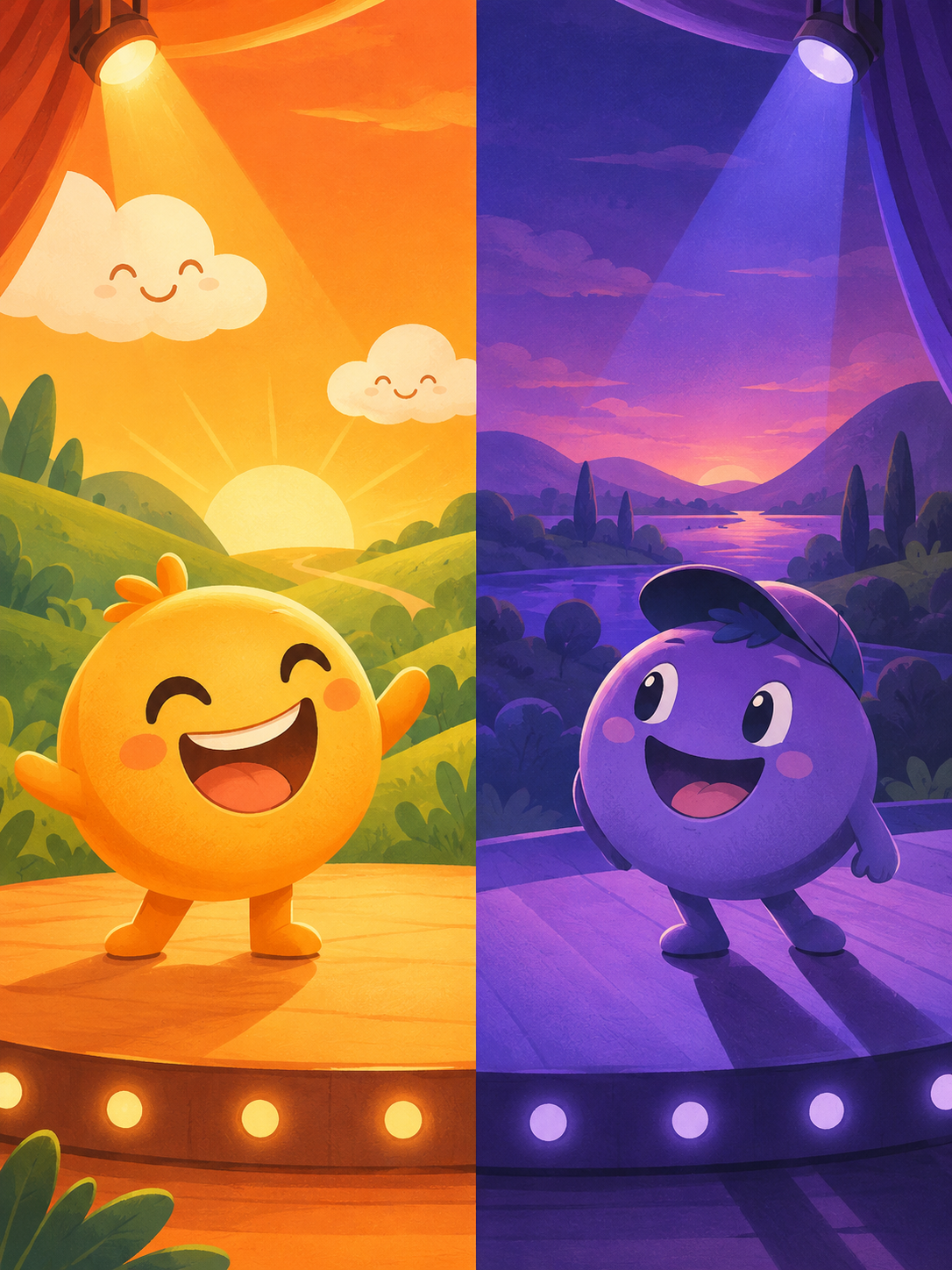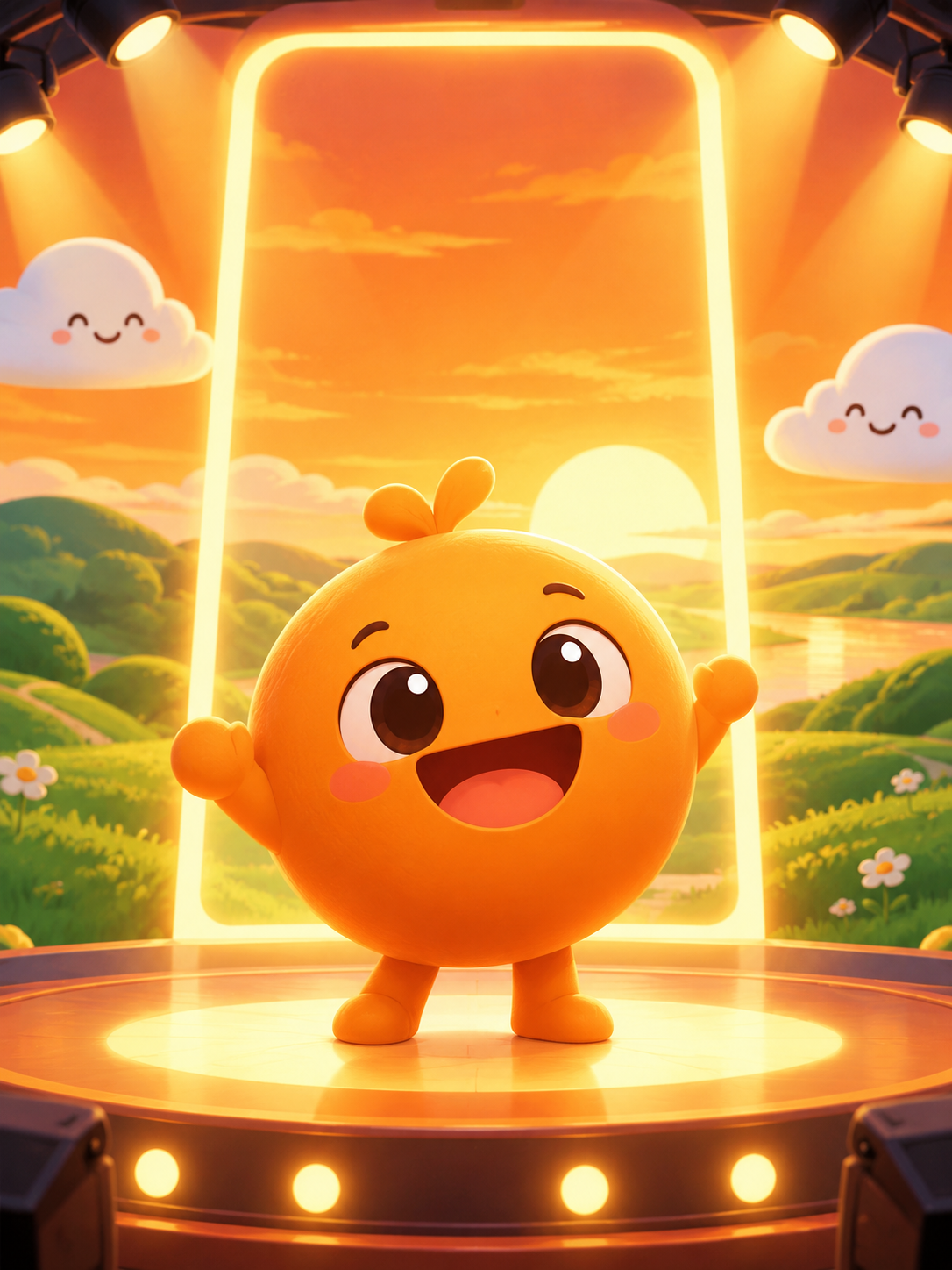
sprunkity.org is an independent, fan-made AI video tool inspired by the Sprunkity scene; it is not the Sprunkity game and is not affiliated with sprunki1000, itch.io, Incredibox, or TheGoodSprunkiOwner124. It turns either a written prompt or one character image into a 10-second, 720p, vertical, silent MP4 with Seedance 2.0, and each render costs 30 credits.
The short version
- Two input modes: a written prompt, or one JPG, PNG, or WebP image up to 10 MB.
- One output format: 10 seconds, 720p, 9:16, silent MP4.
- Every render costs 30 credits.
- New accounts start with 0 credits. There is no signup bonus, check-in reward, free preview, or watermark trial.
- Paid renders have no watermark.
- Failed generations return their credits automatically.
- Inputs and outputs are moderated.
- No exact likeness guarantee, no custom audio, no multiple images, and no resolutions beyond 720p.
Step 1: Choose text or image mode
Text mode needs no upload. You describe the subject, action, setting, camera, and mood, and the tool builds the clip from that description alone. Image mode accepts one character image and uses it as the visual anchor, which is useful when you want a specific character design to lead the shot. The image does not describe motion, so you still need a prompt for action, camera movement, and tone.
Both modes produce the same output: a 10-second, 720p, 9:16 silent MP4. Neither mode adds audio, and neither mode lets you upload multiple images or several models. Use text mode when you have a scene idea but no usable character image. Use image mode when you have one clear character image and want the render to stay visually close to it. “Close” is the right expectation: the tool does not guarantee an exact likeness.
Sprunkity itself is a separate fan-made browser music-mixing game in the Sprunki family, created by sprunki1000 and published on itch.io on 13 October 2026. A different, download-only game with the same name exists from TheGoodSprunkiOwner124. sprunkity.org is neither of those games; it is an independent AI video tool inspired by the scene.
| Mode | Input | Best for | Prompt needed | Output | Credits |
|---|---|---|---|---|---|
| Text mode | Written description only; no upload | New scenes, quick visual ideas, and prompts without a character image | Yes; describe subject, action, setting, camera, and mood | 10-second, 720p, 9:16 silent MP4 | 30 credits per render |
| Image mode | One JPG, PNG, or WebP up to 10 MB | Anchoring one character’s look while directing motion | Yes; the still image does not describe action or camera | 10-second, 720p, 9:16 silent MP4 | 30 credits per render |
Step 2: Write a scene that animates well
A strong prompt gives the model something it can show in ten seconds. Build it from five parts: subject, action, setting, camera, and mood. Keep the action simple. A character waving, turning, blinking, or bobbing is easier to render than a character doing five things at once. If you want a camera move, name one: slow push-in, locked-off shot, gentle pan. If you want a mood, use plain visual words: cheerful, calm, curious, bright, playful. Avoid asking for text overlays, complex effects, or audio cues; the output is silent and the tool is not an editing suite.
Three strong prompts:
- “A single round-faced character with a wide smile stands on a green hill under a warm orange sky, bobbing gently left and right; slow push-in; cheerful and bright.”
- “A small smiling cloud drifts past a circular performer face while the face blinks once and waves; static medium shot; calm and playful.”
- “One character with a simple graphic face turns slowly from left to right and raises one hand; locked-off camera; curious and friendly, clean orange and green palette.”
Three weak prompts:
- “Make a cool Sprunkity video.” This gives no subject, action, setting, camera, or mood.
- “A character does something funny and viral.” This is a goal, not a scene.
- “A huge crowd, fireworks, text, and three fast camera moves in ten seconds.” This is too crowded for a short clip and asks for elements the tool does not reliably handle.
For image mode, describe motion that suits the still. If the image shows a full-body character, ask for a small turn or wave rather than a full dance sequence. If the image is a close-up, use facial motion and a simple camera move. Do not ask the tool to preserve an exact likeness; use the image as a visual anchor, not a guarantee.
Step 3: Check the cost and generate
Every render costs 30 credits. The site shows your balance and any shortfall before generation starts, so you can see whether you have enough credits before you commit. New accounts start with 0 credits; there is no signup bonus, check-in reward, free preview, or watermark trial. Paid renders have no watermark. Monthly credits expire at the end of each billing month, yearly credits are valid for the billing year, and one-time credits never expire.
A simple generate flow:
- Choose text mode or image mode.
- Write the prompt, and upload one image only if you chose image mode.
- Check your credit balance and the shortfall shown by the site.
- Submit the render. Inputs are moderated before generation.
- Wait for the queue. Queue time varies.
- Download the MP4 after the render succeeds. Outputs are also moderated.
If your balance is below 30 credits, the render cannot start. Check the pricing page for credit packs and match the pack to the number of renders you actually plan to make. A 30-credit pack covers exactly one render; larger packs cover more. One-time credits do not expire, which makes them useful if you render occasionally rather than every month. Monthly and yearly credits follow their billing periods.
What to do when a render fails
Failed generations return their credits automatically. Wait for the job to finish and check that the credit return has posted before retrying. If the failure looks like a temporary queue or processing issue, retry with the same settings first; that keeps the comparison clean. If the failure is tied to moderation or an input problem, adjust the prompt or replace the image before submitting again. Do not resubmit an in-progress job. A duplicate submission while the first job is still running will not speed up the result and can make your history harder to read.
Image-mode checklist
Image mode works best with one clear subject. Use this checklist before you upload:
- One clear character. Avoid group shots, collages, or images where the main subject is ambiguous.
- Full body or clear framing. A complete figure gives the render more to work with than a tightly cropped fragment.
- Simple background. Plain or uncluttered backgrounds reduce visual confusion.
- Rights and consent. Use only images you have the rights to use. If the image shows a person, make sure you have their consent.
- Correct file. JPG, PNG, or WebP, up to 10 MB.
- One image only. The tool does not accept multiple images.
- Moderation. The image is checked before generation; outputs are moderated as well.
- Realistic expectations. The result can follow the character’s general look, but exact likeness is not promised.
What the tool does not do
The tool does not create custom audio. Output is silent, so you must add music you have the rights to use. It does not accept multiple images, does not offer multiple models, and does not provide resolutions beyond 720p. It does not include an editing timeline, so you cannot trim, layer, or assemble scenes inside the tool. It does not guarantee an exact likeness of a character or person. Paid renders have no watermark, but there is no watermark trial. Rights in the Sprunkity game, its characters, and its art belong to their respective creators.
FAQ
Do I need to upload an image? No. Text mode creates the clip from the description alone. Image mode is optional and accepts one JPG, PNG, or WebP up to 10 MB.
How much does one video cost? 30 credits. The Duo Pack is $19.90 for exactly one render. New accounts start with 0 credits; there is no signup bonus, check-in reward, free preview, or watermark trial.
Can I download the result? Yes, after the render succeeds and the credits were paid. Paid renders have no watermark. Failed generations return their credits automatically.
Keep creating
Start at /#create when you are ready to render a 10-second clip. For prompt structure, read Sprunkity text-to-video prompts. If you plan to use a character image, see Sprunkity image-to-video. For credit math and pack choices, read Sprunkity AI video cost and check pricing.
Try the tool from this guide
Every render costs 30 credits. Failed generations return credits.
Make your Sprunkity video
Describe a 10-second Sprunkity-style scene. Seedance 2.0 creates it from your words alone.
Only selected results appear in our gallery after review. Your input remains private.
$19.90/ 30 credits
30 credits · 10 secondsEvery render costs 30 credits. One-time packs never expire; monthly credits last for the billing month.
Your videos
Describe a scene or upload a character image, then create your video.
Sprunkity
Sprunkity editorial team · Source and publishing references